Status pages
Incidents on your status page
Incidents are how you tell visitors something is wrong. They attach to components on a status page. You can post them here, or, when you link a check, pick Create an incident automatically or Ask me to review first under When the check is down. The default is Don't create an incident.
With Create an incident automatically, the first confirmed failure opens one incident. If the check is already back up before that first notice is sent, no incident is opened. A short recovery does not resolve it. With Resolve the incident automatically when the check recovers on (the default, under Advanced on the check), the incident stays open, and the component stays degraded, until the check has stayed up for its interval × (failures to confirm + successes to recover), and at least 5 minutes. A Free check (every 5 minutes, 3 failures, 1 success) waits 20 minutes; a 1-minute check with the same counts waits 5. The check form shows the exact wait under Advanced. If it fails again during the wait, the same incident stays open. Visitors and subscribers are not notified again. When it has stayed up, the incident resolves once. A brief outage is still one incident. The page stays degraded for that extra wait so it does not fill with incidents that each lasted a minute or two. With that option off, the incident stays open until someone resolves it. Setting the check back to Don't create an incident resolves the open incident on the next pass.
Review before publishing
A check set to Ask me to review first does not publish anything when it goes down. It puts a draft on the Needs review tab, which appears with a count while drafts are waiting. The down alert links to the draft.
Each draft is titled {check} is down and has Title, Message, and Impact (Degraded performance, Partial outage, or Major outage). Edit them, then:
- Approve and publish posts the incident to the page. The draft then shows Approved by {name}.
- Dismiss drops it. Nothing is published.
If the check recovers before anyone decides, the draft is marked Check recovered before review. With nothing to review, the tab says Checks set to “Ask me to review first” put their draft incidents here when they go down.
List
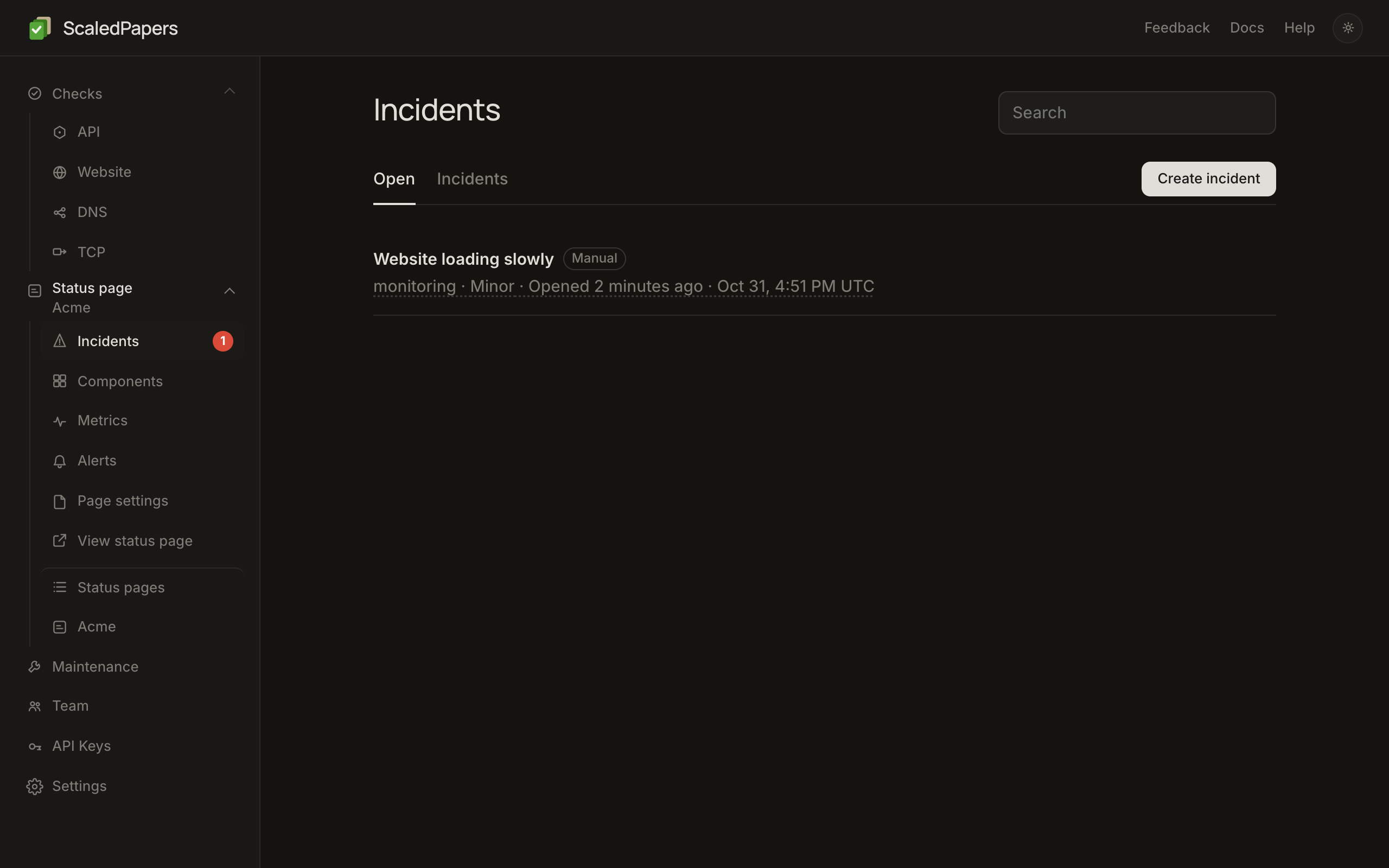
Incidents is the default page after you create a status page. Tabs: Open (default) and Incidents (?view=all). There is a Search box and Create incident. Each row shows title and {status} · {impact} · {Opened …}.
Create
- Click Create incident.
- Title (required).
- Status: investigating, identified, monitoring, resolved.
- Impact: Degraded performance, Partial outage, or Major outage. The status page uses the same words, and only Major outage counts as major outage time on the 90-day bar. In the API these are
minor,major, andcritical. - Affected components — at least one checkbox. You cannot publish with none selected.
- Message (required). It starts as We are looking into the issue.
- Click Publish. If a selected component is already in an open incident, this posts your message as an update on that incident. When several are still open for that component, the update goes on the oldest one. If the selection spans different open incidents, publish is refused and you post an update on each one.
To record something that already ended: check Backfill an incident that happened in the past. Incident started and Incident ended appear (page timezone), status is forced to resolved, and the button is Create.
Update, resolve, delete
On an open incident you can:
- Edit Impact (pencil)
- Edit each update’s timestamp (✎)
- Post an update — Title, Status, Message, then Post update
- Mark resolved — posts your message, or Resolved. if the box is empty
- Delete incident — type DELETE in the dialog, then Delete incident
Delete incident is also on resolved incidents. Incident ended is editable on the timeline.
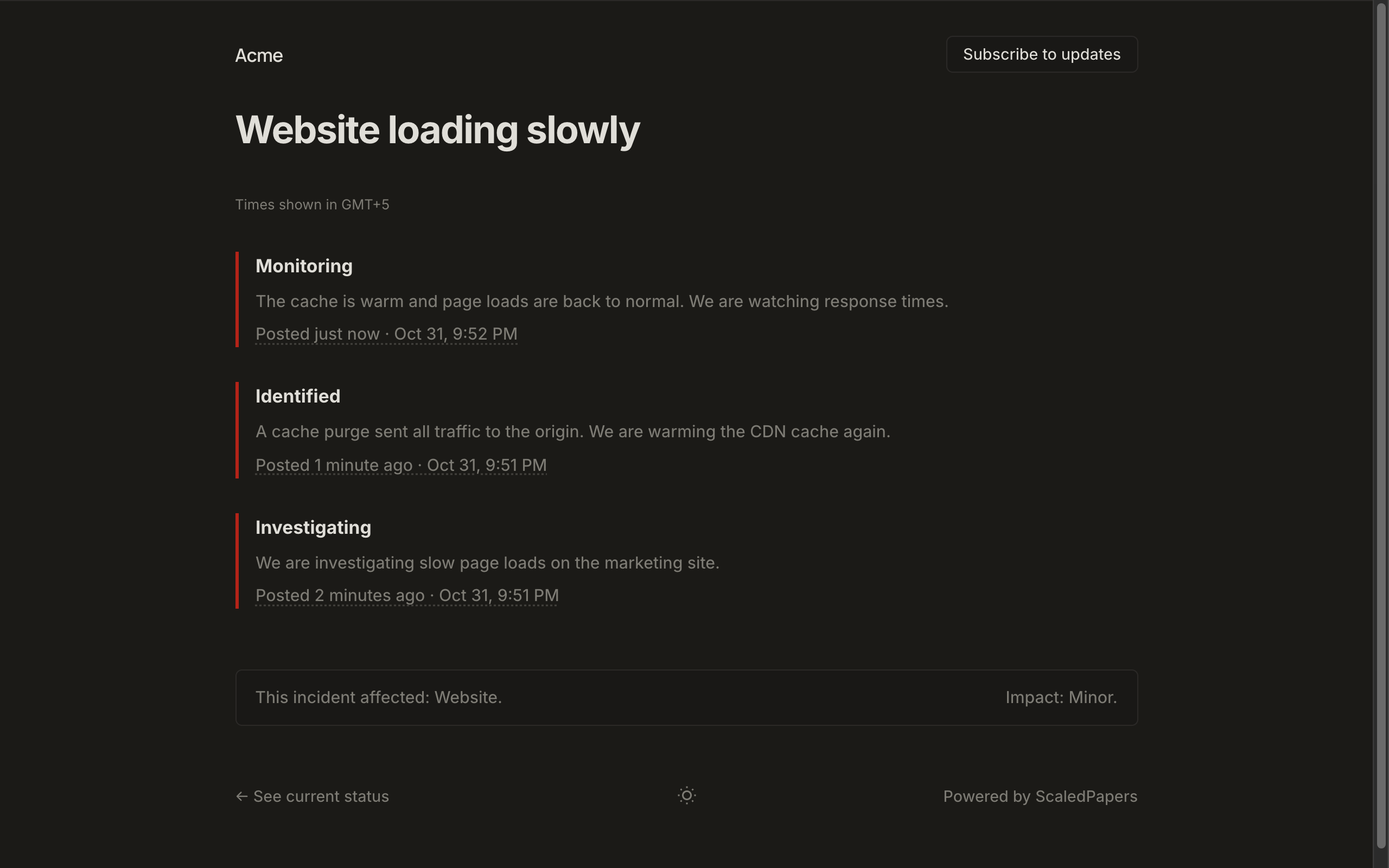
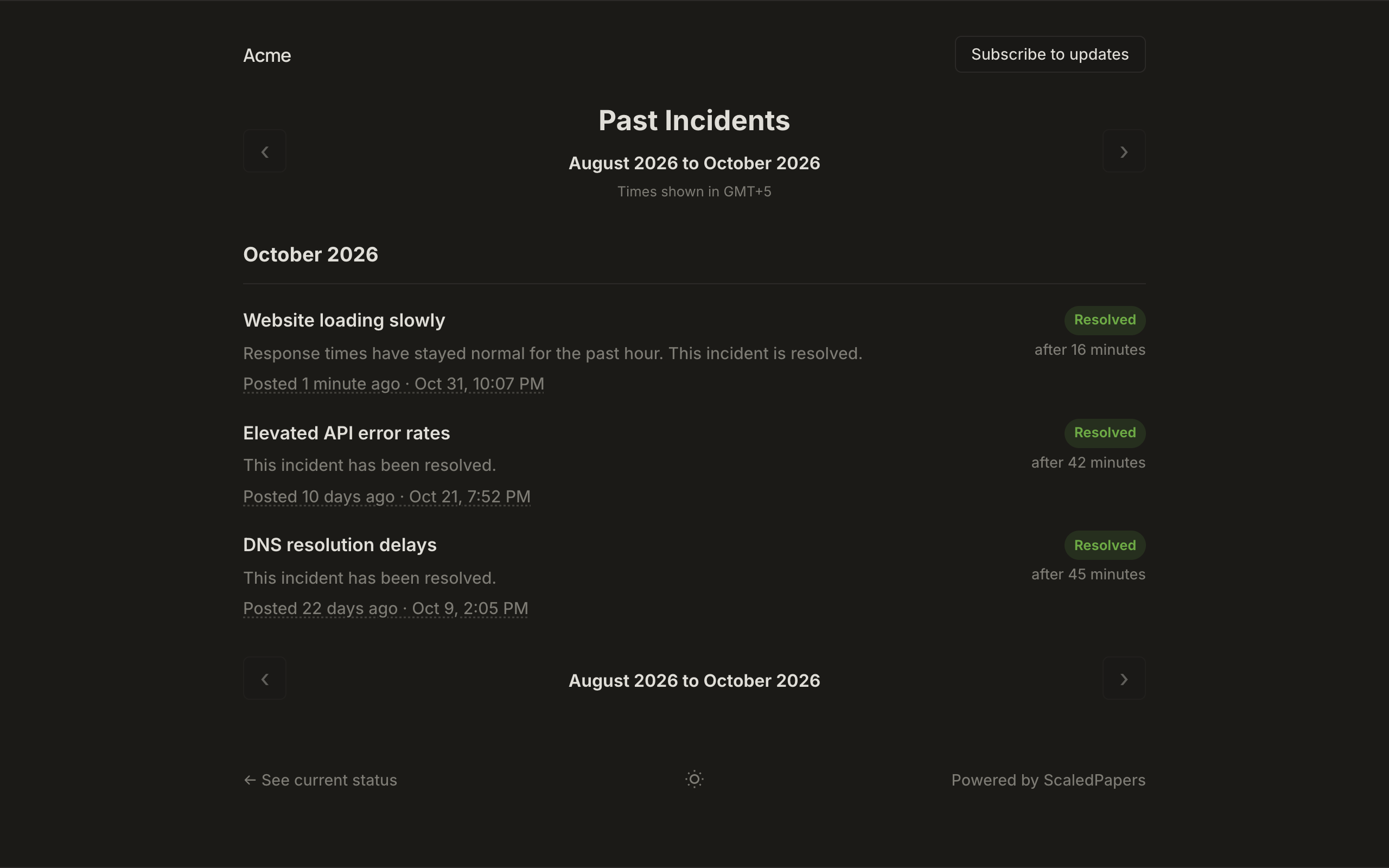
Visitors see the same timeline on the public incident page ({page}/incidents/{id}, 12-character id). History is under Past Incidents with ‹ / › pagination.